Set up AmiFam step by step
From installing AmiFam to the first signal from someone you care about, in about 10 minutes. Each person you connect with does steps 1 to 3 on their own phone.
Install AmiFam
Android
While AmiFam is in testing, Google Play shows it only to testers. To become a tester, you first join our group on Google Groups. Helping your mom or dad? Do this on their phone, with their Google account.
- Open our group on Google Groups and join it. Use the same Google account as on the phone.
- Wait 5 to 10 minutes. Google Play needs this time to add you to the test.
- Open the AmiFam test on Google Play.
- Tap Become a tester. Google Play then shows You are a tester.
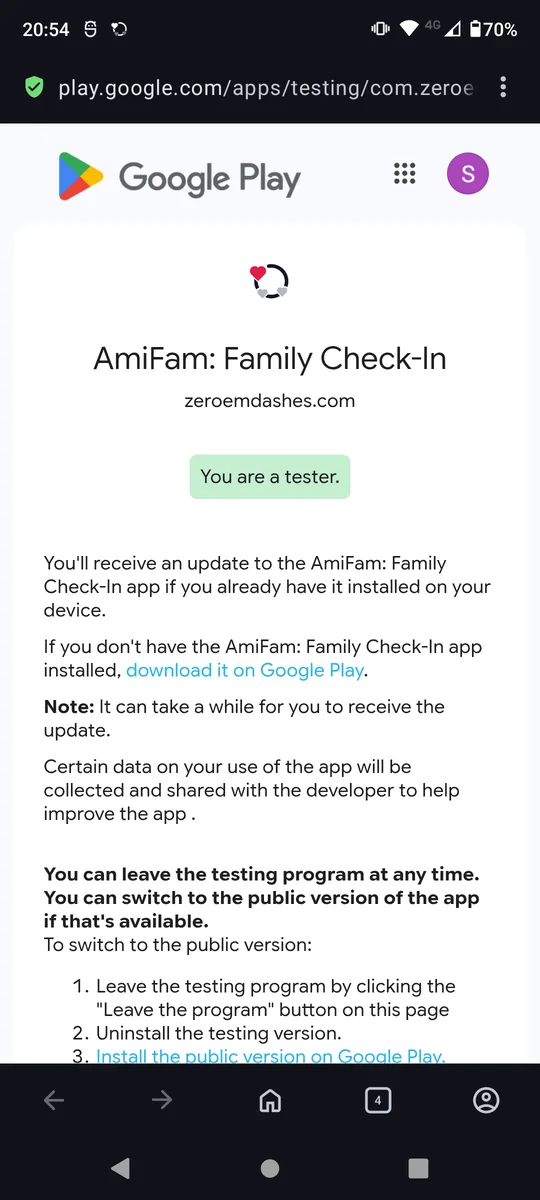
- Tap the link to download AmiFam on Google Play, then tap Install.
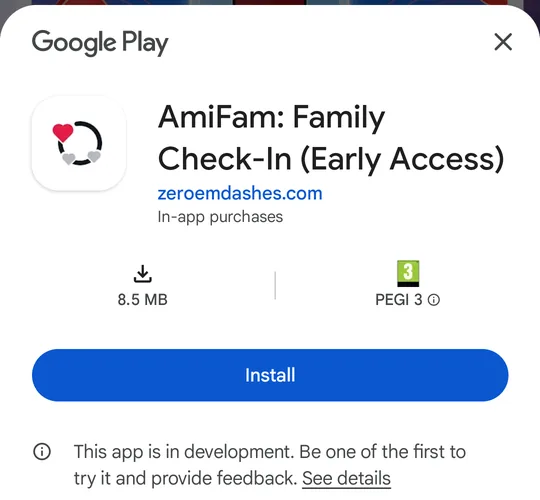
If Google Play then asks you to add a card or PayPal, tap Skip. AmiFam is free to install.
It does not work?- Check that you joined the group with the Google account on the phone. You see that account in Settings, then Google.
- If Google Play does not let you in to the test yet, wait a few more minutes. Then open the test again.
- Still nothing? Write to support@amifam.com.
iPhone
While AmiFam is in testing, an iPhone gets it from TestFlight, Apple's app for testing apps. On an iPhone, AmiFam is for watching: you see the people you connect with, get their alerts and send manual check-ins. Sharing signals from an iPhone comes later.
- On the iPhone, install TestFlight from the App Store.
- On the same iPhone, open the AmiFam test.
- Tap the button to start testing. In TestFlight, accept the invitation, then install AmiFam.
- Open AmiFam from your Home Screen. Then go on with step 2.
It does not work?- AmiFam needs iOS 15 or later.
- TestFlight says the test is full, or still nothing? Write to support@amifam.com.
Sign in with your phone number
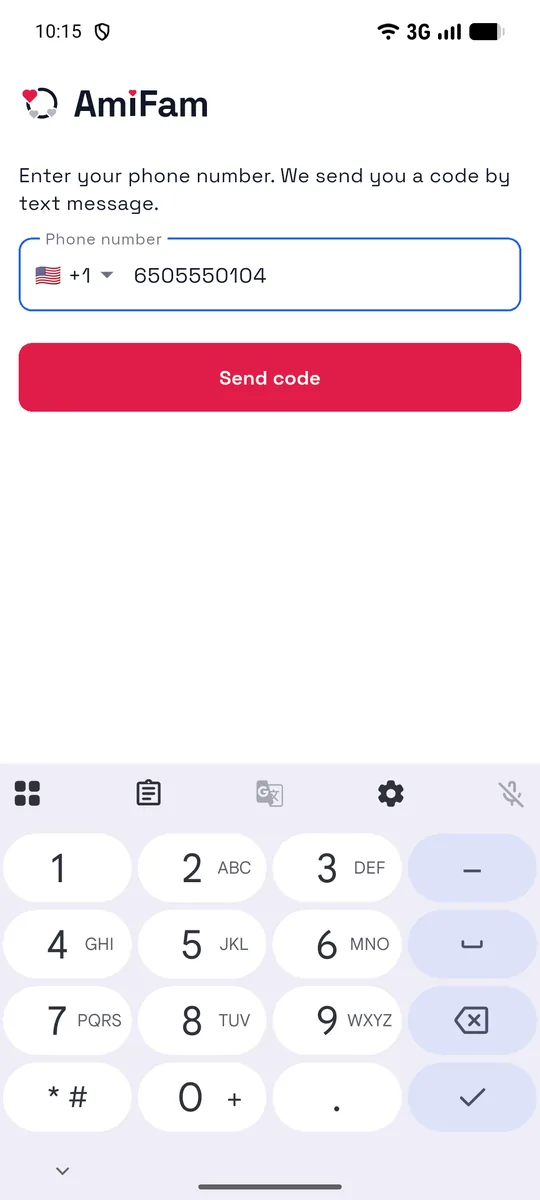
- Open AmiFam. It picks your country from the SIM card, with its flag and country code. If the country is wrong, tap the flag and pick yours. Then enter your phone number and tap Send code.
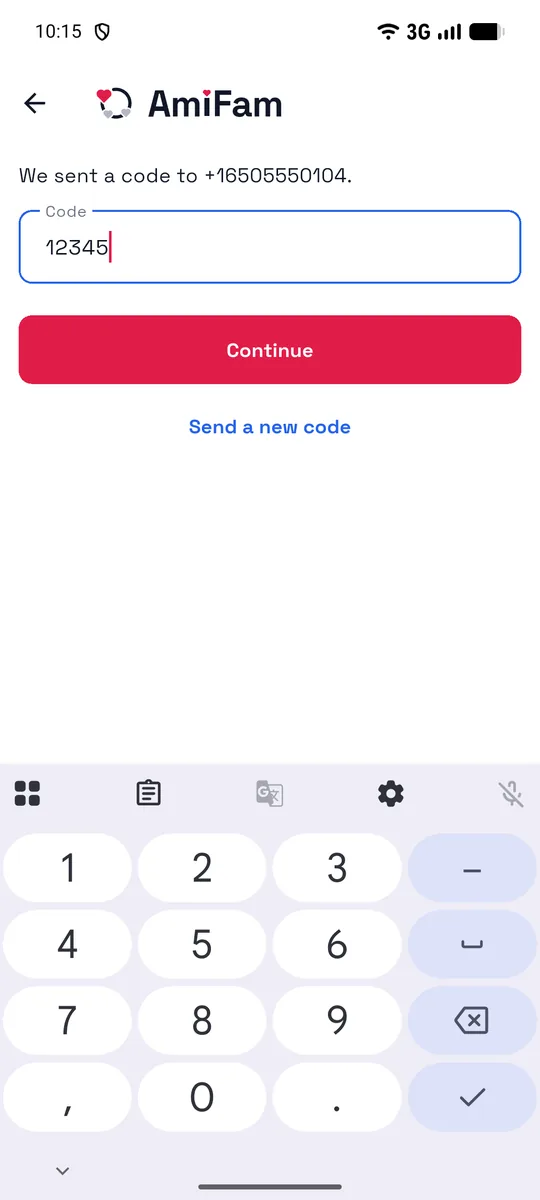
- Enter the code we send you by text message. AmiFam goes on by itself once all 6 digits are in.
Your account is ready. AmiFam gives you an AmiTag, such as otter4821, so people can find you. In Profile, you can add your name and email, and change your AmiTag once.
- Open AmiFam. It picks your country from the SIM card, with its flag and country code. If the country is wrong, tap the flag and pick yours. Then enter your phone number and tap Send code.
Answer the first questions
Right after you sign in, AmiFam asks a few short questions, one per screen. The top of each screen shows how many are left. Not now always goes to the next question, and you can change each answer later in Profile.
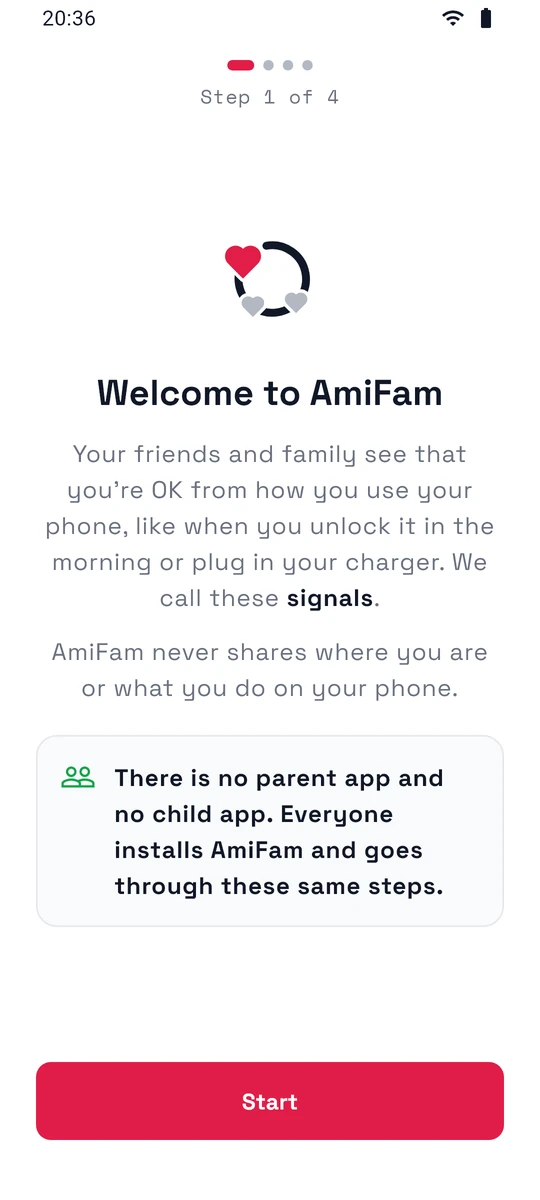
- A new account first sees Welcome to AmiFam. Tap Start.
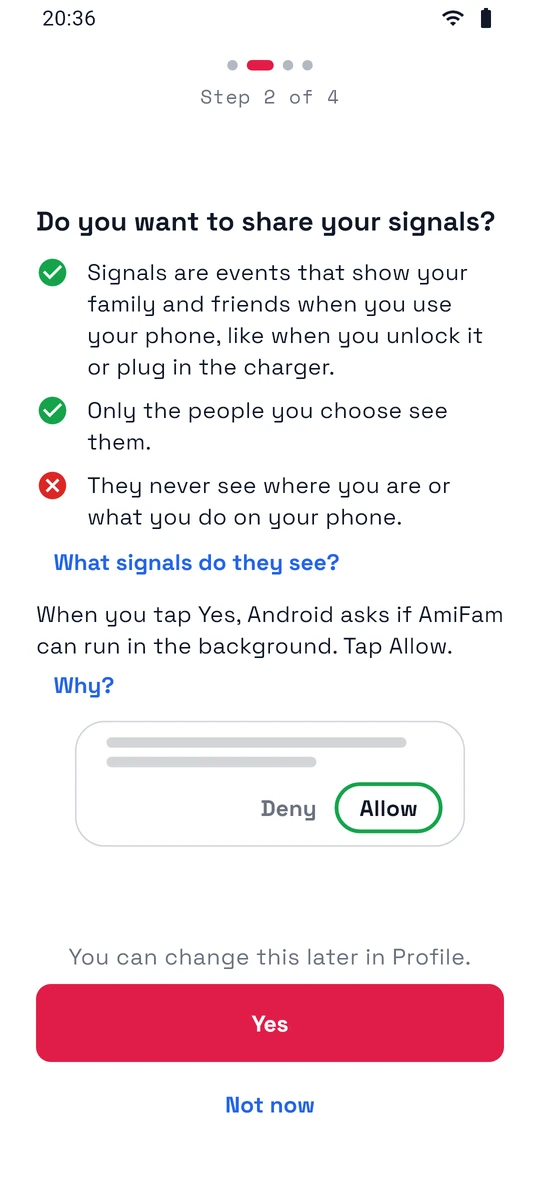
- Do you want to share your signals? Tap Yes. Signals are what your phone shares by itself: when you unlock it, charge it, when the battery is low and when it turns off. Only the people you choose see them, and never where you are or what you do on your phone. What signals do they see? shows the full list.
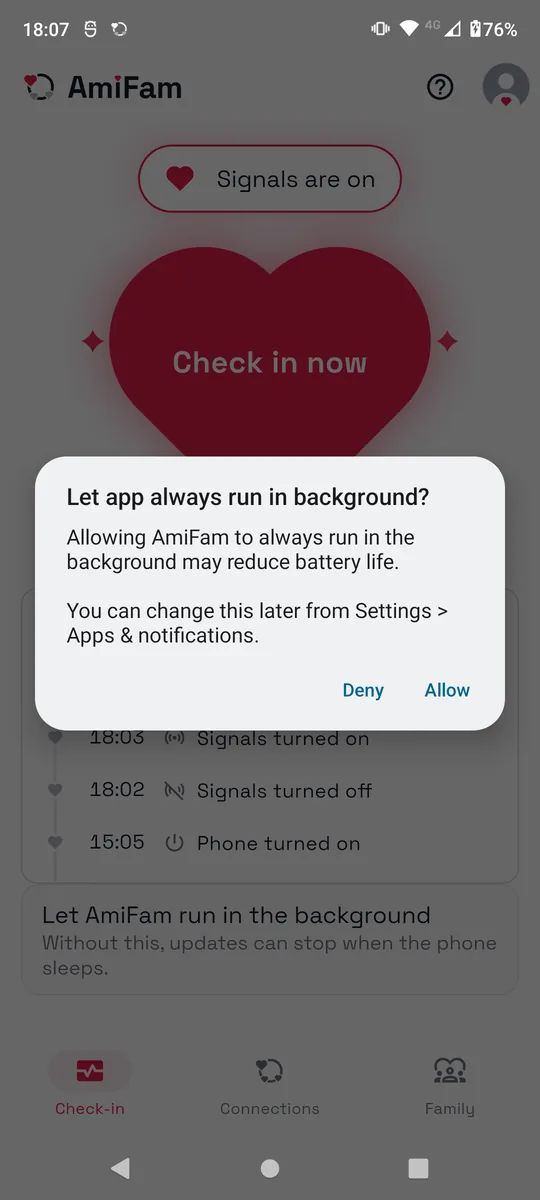
- Android then asks to let AmiFam always run in the background. Tap Allow. Without this, signals can stop when the phone sleeps.
- On some phones, such as Samsung or Xiaomi, AmiFam then shows Keep AmiFam running, with the steps for that phone. Follow them, so the phone does not stop AmiFam.
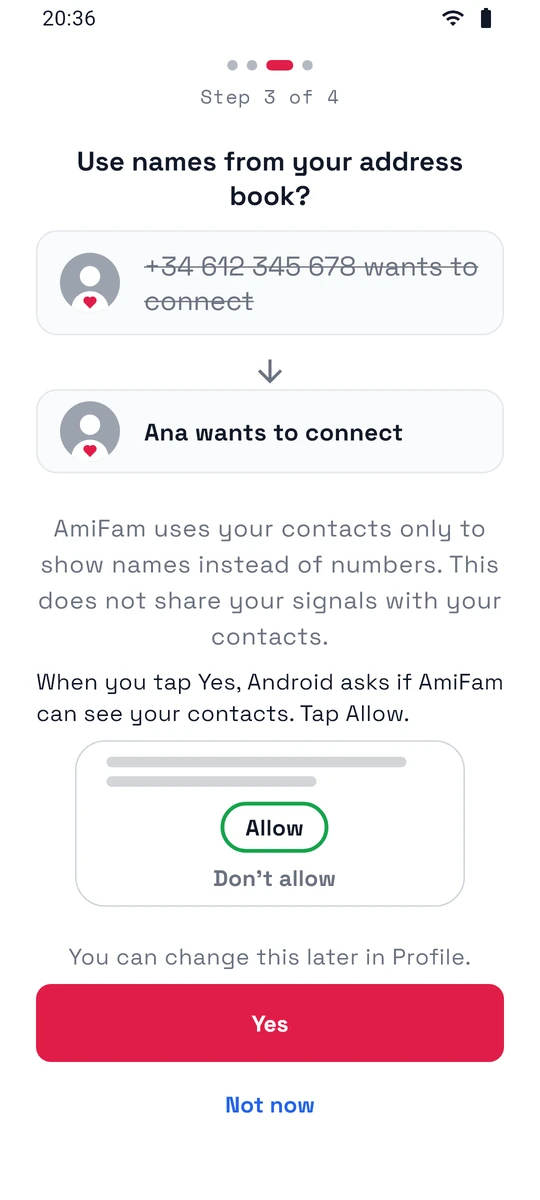
- If someone already invited you, AmiFam asks Use names from your address book? Tap Yes, then Allow. AmiFam then shows names instead of phone numbers. Your contacts stay on your phone.
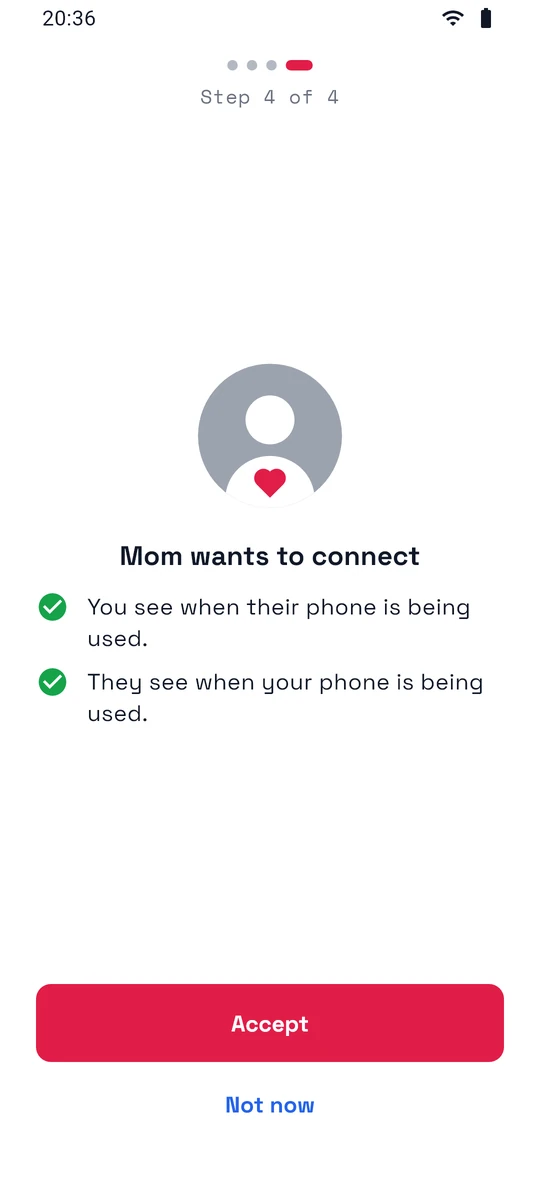
- Then you see their request, such as Mom wants to connect, or their invite to a family. Tap Accept.
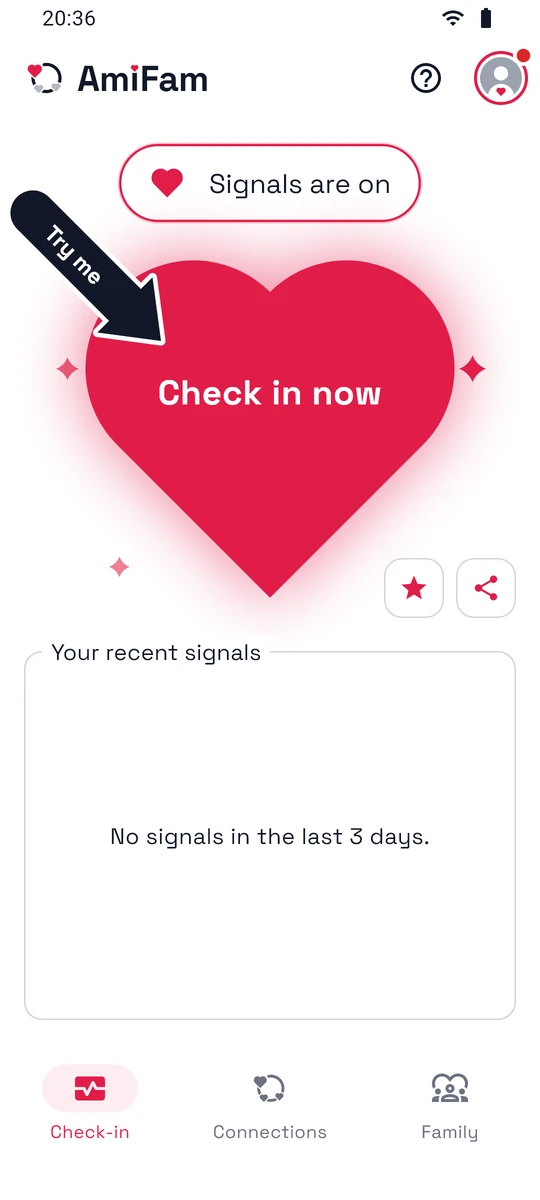
A new account then opens on the Check-in tab, with a Try me arrow at the heart. Tap the heart to check in for the first time.
AmiFam asks about notifications later, once you are connected with someone. Step 5 shows how.
If you only want to see others, tap Not now on the signals question. You can turn signals on later in Profile.
On an iPhone, AmiFam leaves out the signals question.
- A new account first sees Welcome to AmiFam. Tap Start.
Connect with someone
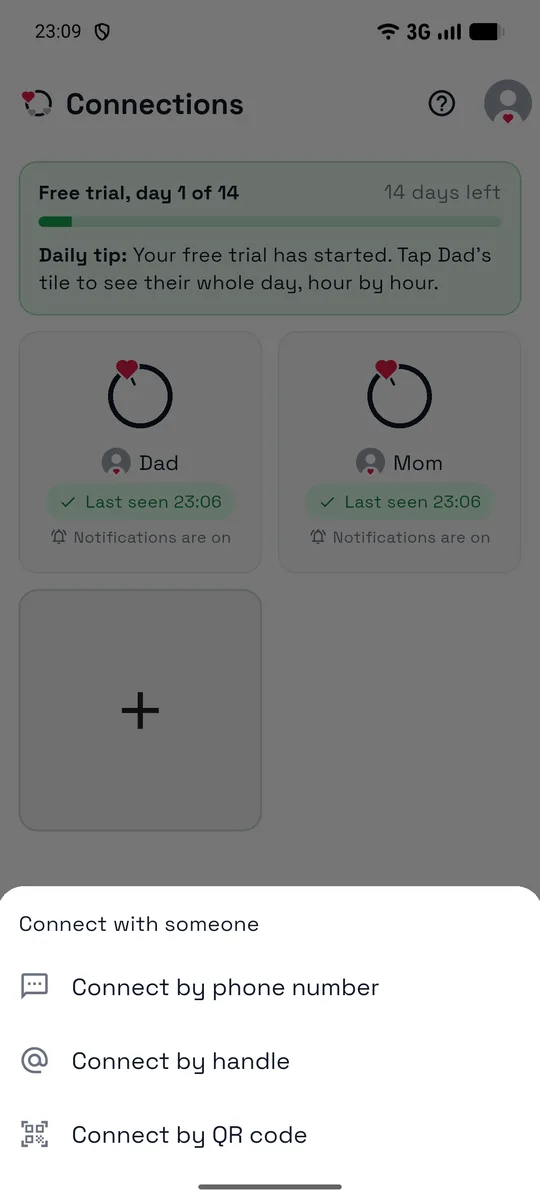
- Open the Connections tab and tap +.
- Choose Connect by phone number, AmiTag or QR code.
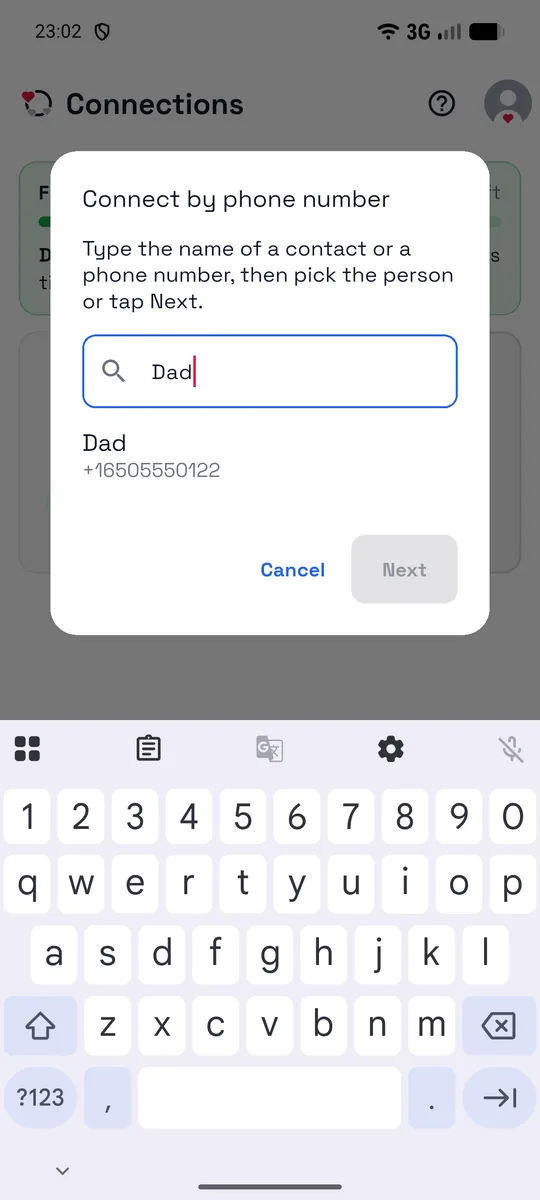
- Type their name or phone number, then pick them.
- Tap Send request, then Done.
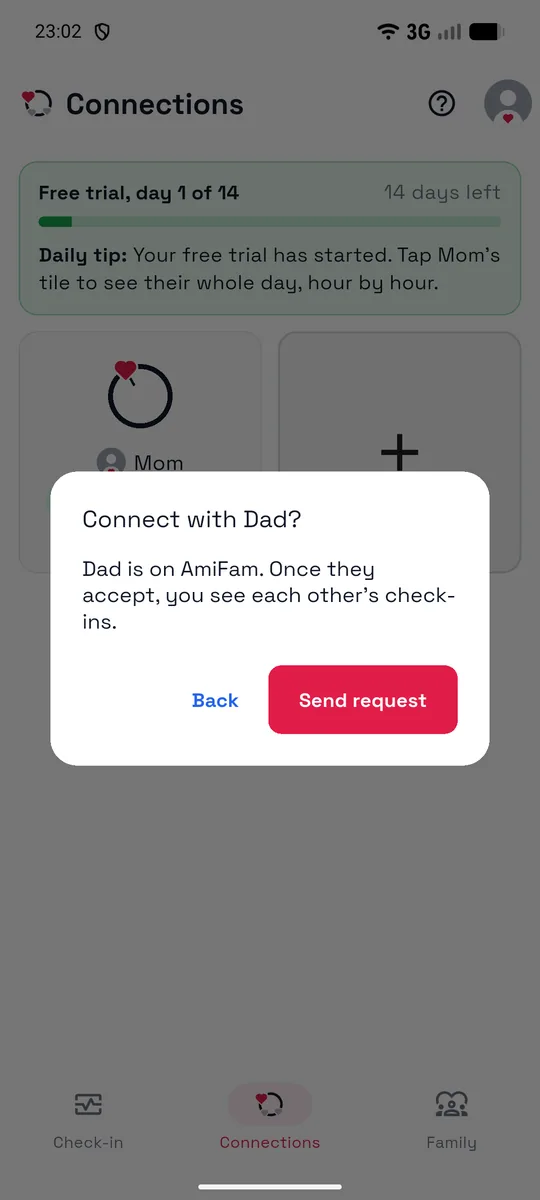
- Until they accept, their tile on Connections says Waiting.
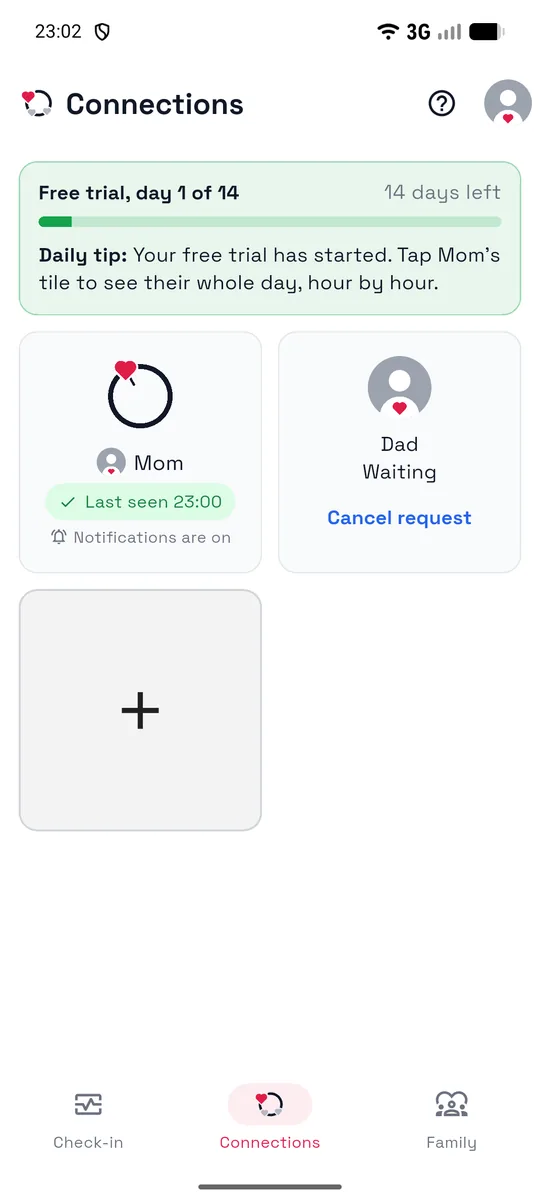
- On their phone, they see your request on Connections and tap Accept. If they sign in to AmiFam after you sent it, AmiFam shows it to them right after sign-in.
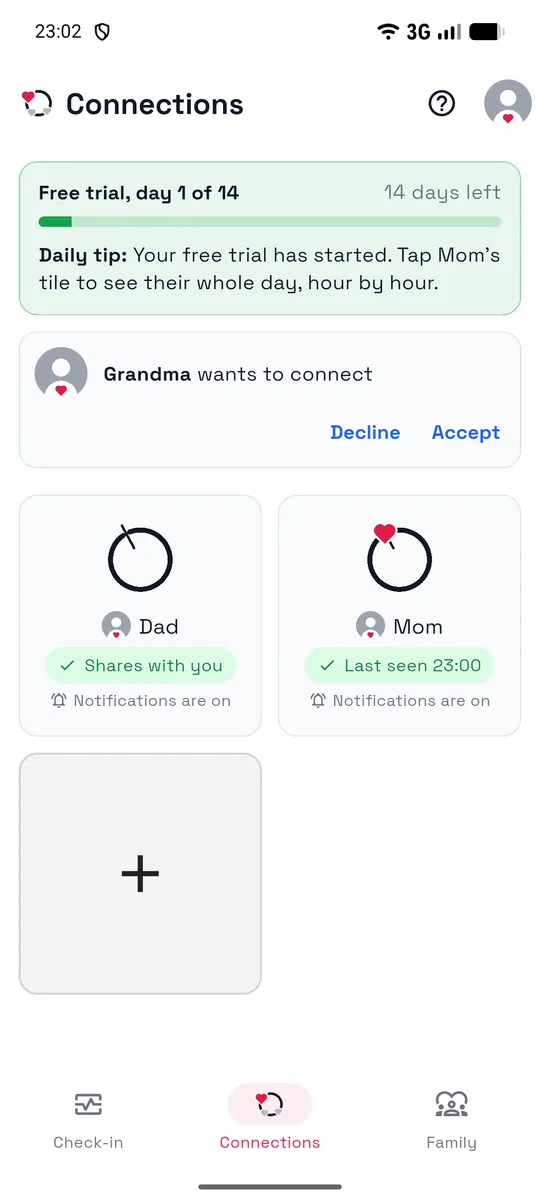
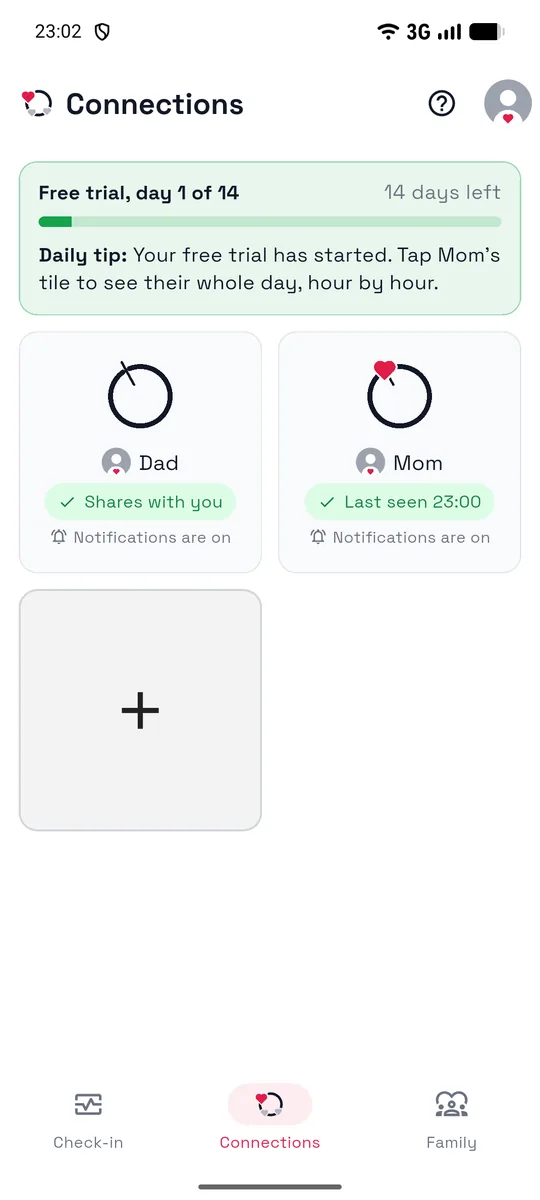
- You are connected, and each of you sees the other.
Not on AmiFam yet? Connect by phone number anyway. AmiFam tells you they are not on AmiFam yet: tap Send invite link and pick an app, such as WhatsApp or Messages. They get a message like this one:
Connect with me on AmiFam: https://amifam.com/i/K7M2QX
The link is only for them. It works for the phone number you entered, for 7 days. When they install AmiFam and sign in with that number, your request is waiting for them.
During the test, they also need to install AmiFam from the test first. Step 1 shows how, on Android and on iPhone.
Choose your alerts
Open a person's screen. If notifications are off, AmiFam first asks Do you want notifications on your phone? Tap Yes, then Allow. Then tap Configure notifications.
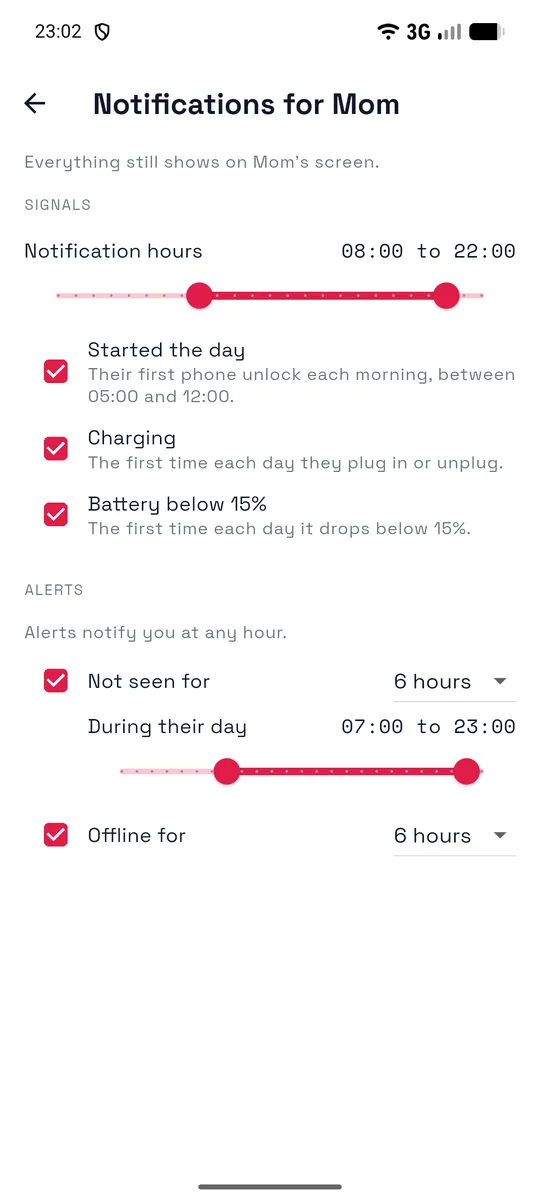
- Signals: choose which ones notify you, for example Started the day, Charging or Battery below 15%, and the hours when they can notify you.
- Not seen for: a notification when their phone has not been used for 3, 6, 12 or 24 hours during their day. You choose the hours of their day under During their day. It is on from the start, at 6 hours.
- Offline for: a notification when their phone stops answering, for example when it is off or out of battery.
Add your family
A family puts everyone on one screen, from 3 to 10 people.
- Open the Family tab and tap +.
- Name the family and invite at least 2 more people, by AmiTag, phone number or from your connections.
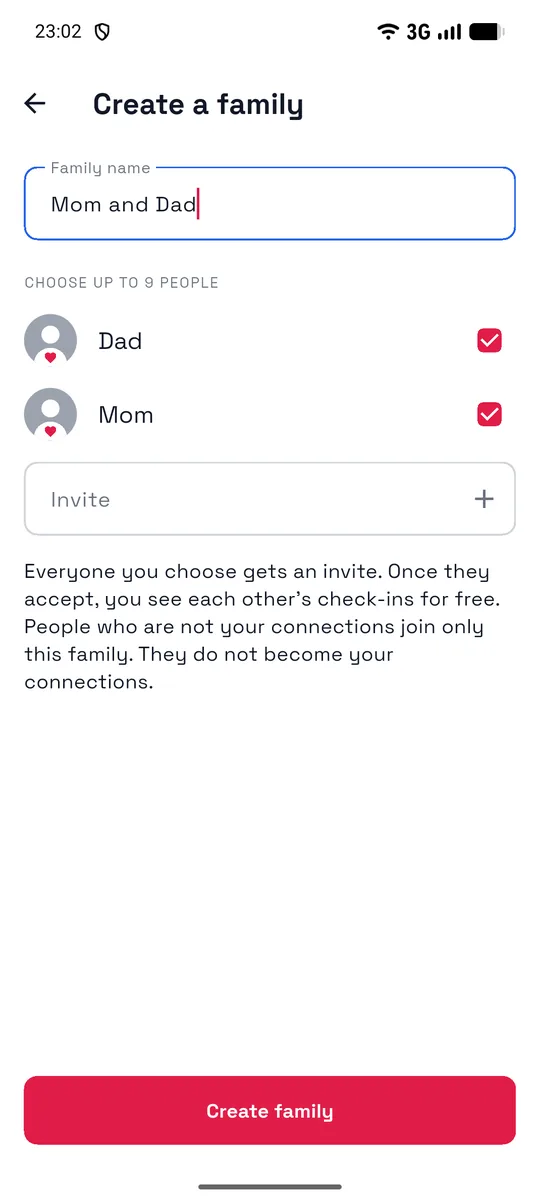
- Each person joins when they accept the invite.
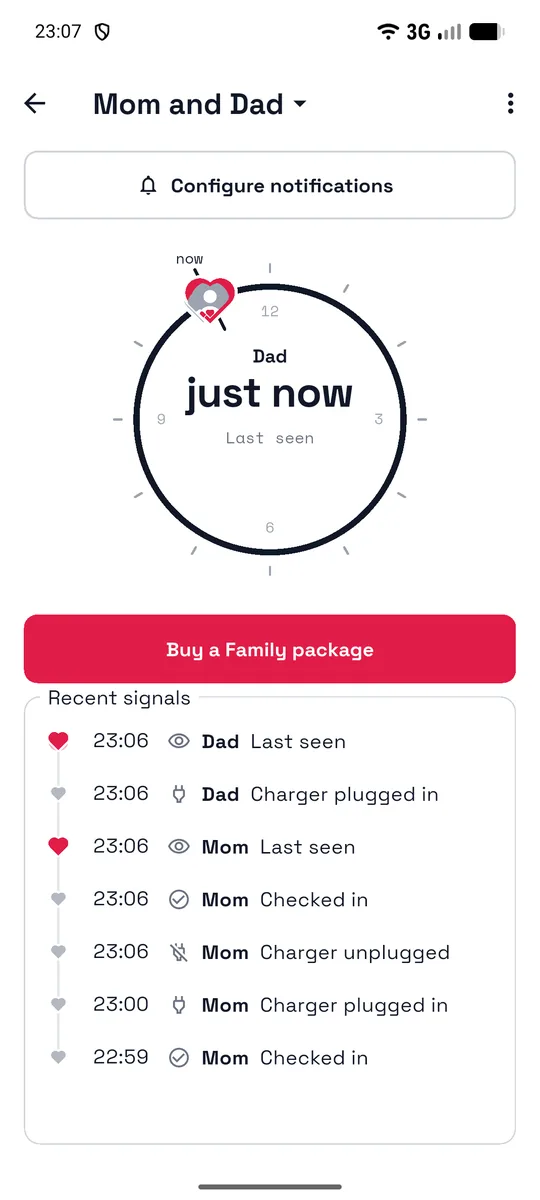
- Tap the family to open it: one dial and one list with everyone's signals, each with who sent it.
Check in with one tap
Press the heart on the Check-in tab to say you are OK. Every connection sees it.
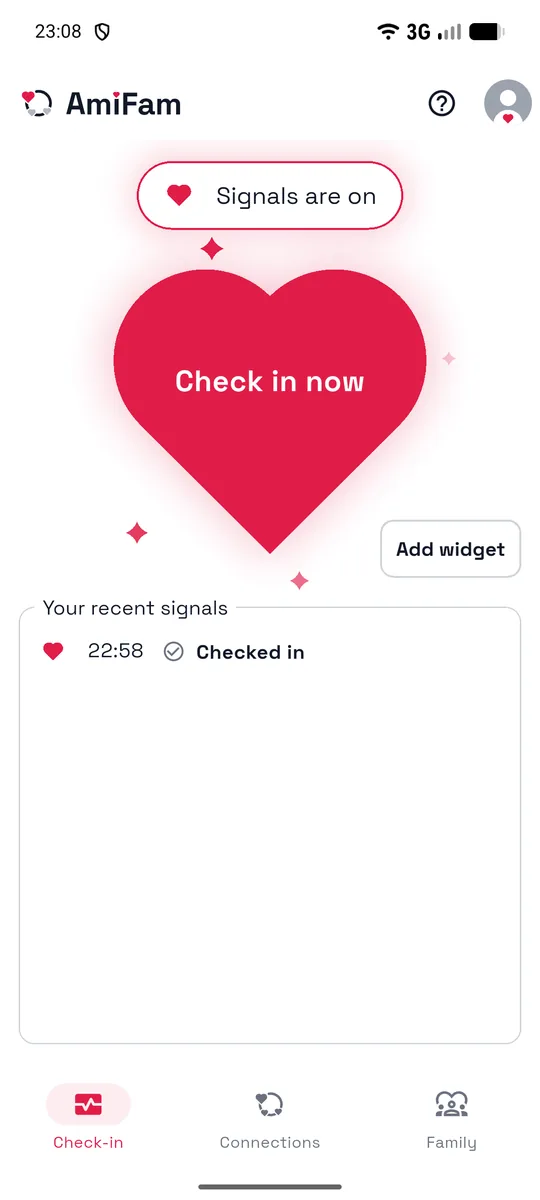
To check in without opening the app, add the AmiFam widget to your home screen: tap Add widget, then Add small or Add large.
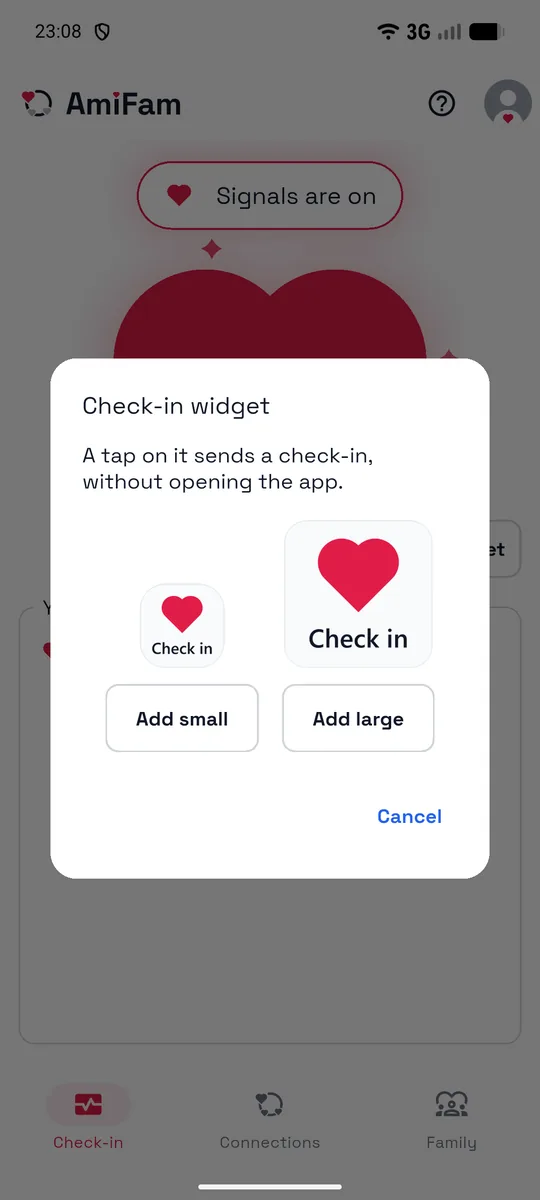
On an iPhone, touch and hold an empty spot on your Home Screen, then add the AmiFam widget. Hold the widget to choose who gets your check-ins. The widget needs iOS 17 or later.
You see nothing from someone?
Most often their day has not started yet: the first unlock usually comes in the morning.
Other reasons:
- Their phone is off or out of battery.
- They turned signals off.
- Android stopped AmiFam to save battery. Ask them to open AmiFam and check that signals are on. On some phones, they also need to let AmiFam run without limits in the phone's battery settings.
If their tile says Check-ins only, you see their check-ins but not their signals.
Tell us what you think
In AmiFam, tap ? at the top, then Write to us. Or email support@amifam.com. Every message reaches the person who builds AmiFam.